
From empty room to reviewed visualization
How to Virtually Stage a Home
Virtual staging furnishes a photograph, not the home itself. Follow one room through the decisions that matter: a suitable input, a furnishing direction and a careful result review.
Open the staging studioWhat is virtual staging in real estate?
Virtual staging adds digital furniture to an image of a room so a viewer can understand a possible use of the space. The furniture is not physically present. It should not be confused with renovation, architectural planning or an installed furnishing package.
Our tool is an AI self-service workflow. It generates an interpretation of the selected style, rather than letting you place exact items one by one.
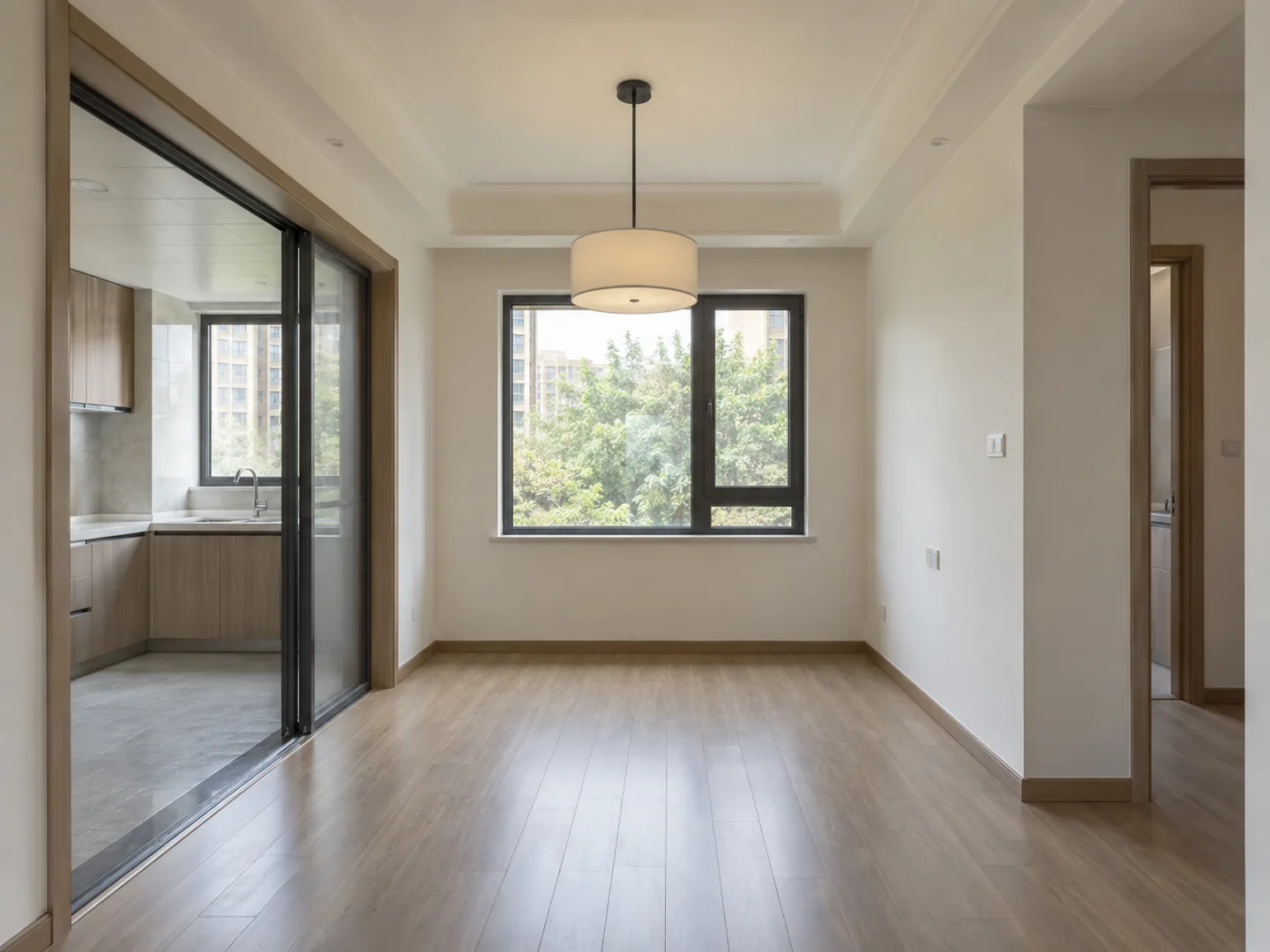
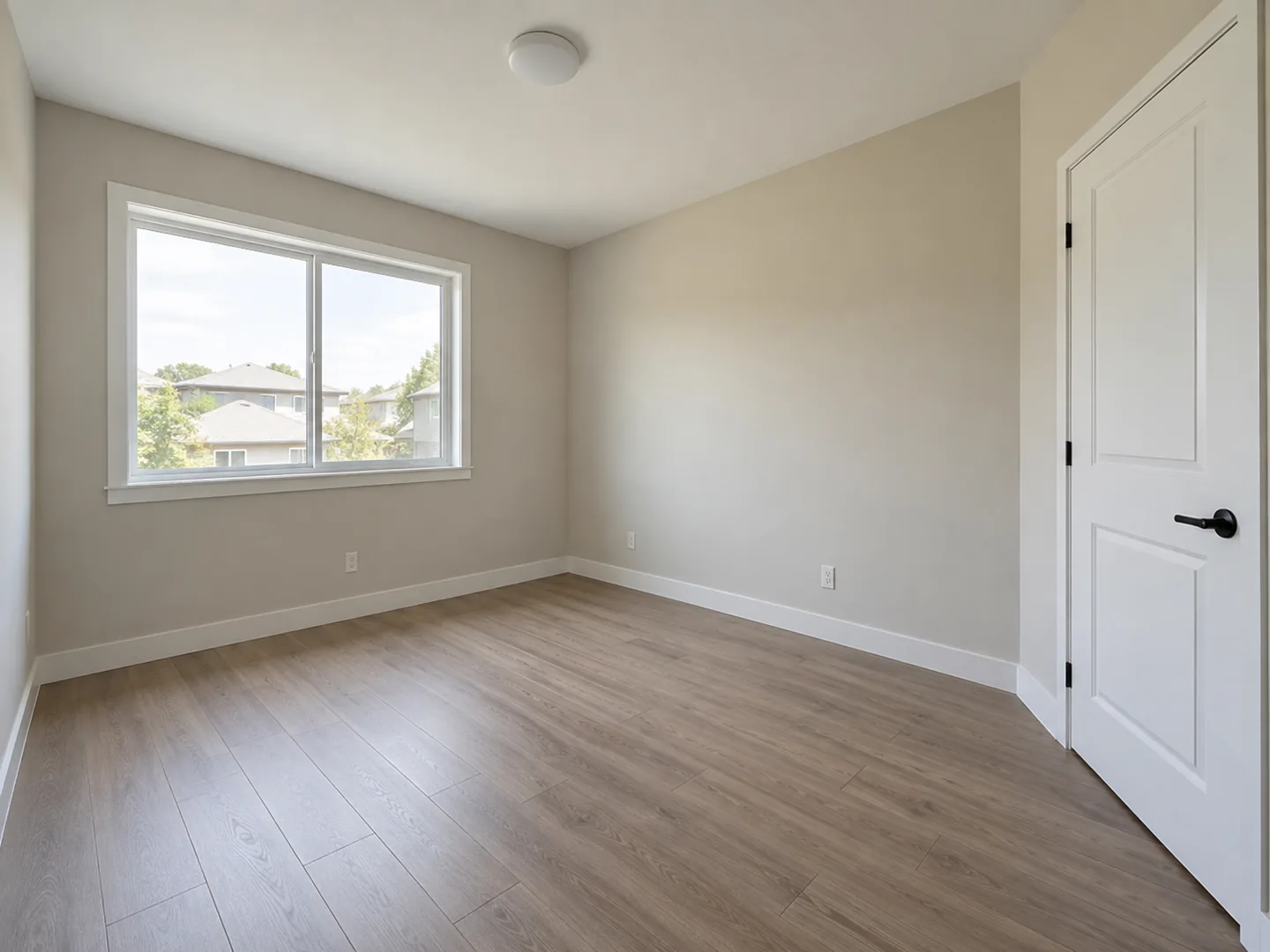
Start with an empty or mostly unfurnished room
Use a photograph with visible floor space, clear doorways and enough context to understand the room. A dining area should still show how people enter it and move to the next room.
There is no dedicated furniture eraser. If the room is already furnished, either photograph it after physically preparing the space or use Interior enhancement to keep the current arrangement.
Choose one furnishing direction
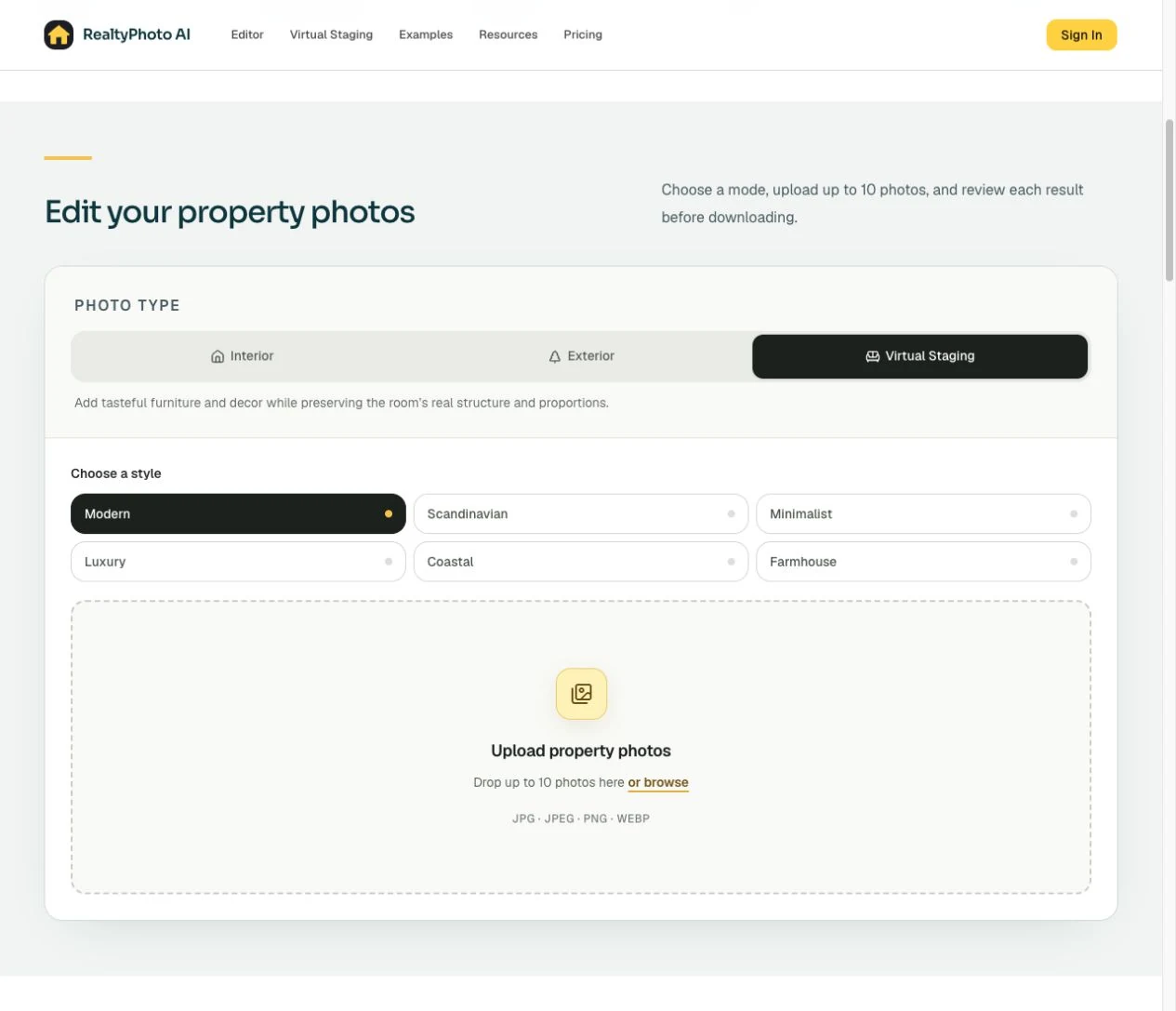
Select Virtual Staging in the editor, then choose Modern, Scandinavian, Minimalist, Luxury, Coastal or Farmhouse. Pick a direction that suits the existing room rather than asking the image to disguise its character.
The style applies to the submitted batch. Images are processed separately; using one style does not lock furniture placement across multiple angles.
Submit and review the furnished photograph
Check the credit cost, submit the photo and open the finished task. The original remains available for comparison. Do not decide from the thumbnail alone.
- Compare the room shape, ceiling, floor and fixed fittings.
- Check contact shadows and furniture scale.
- Leave usable access to doors, windows and circulation paths.
- Reject additions that conceal important property features.
- Check each angle separately; do not assume arrangements match.
Download and make the virtual furniture clear
Download the image only after reviewing it. Describe it as virtually staged where it is shown and check applicable listing rules. Keep the unstaged photo available so viewers can distinguish the property from the visualization.
This workflow does not automatically publish images or certify their compliance. It also does not automatically add a disclosure label to your downloaded file.
Decide whether the actual viewing needs furniture too
A furnished image can explain a possible layout online, but the home remains empty during an in-person viewing. If the physical viewing experience is important, evaluate an on-site staging service separately.
For an occupied vacation rental, do not present virtual furniture as a facility guests will actually receive.
Questions about this workflow
Can I virtually stage a furnished home?
This workflow is intended for empty or substantially unfurnished rooms. It is not a furniture-removal or room-redesign tool.
Does choosing Luxury renovate the room?
No. Styles guide removable furniture and decor. The room’s fixed surfaces and architecture should remain unchanged and must be checked in the output.
Can I stage all angles consistently?
You can submit several images, but they are generated independently. The current product has no cross-angle furniture lock.
RealtyPhoto AI
Try the workflow with your own photo
Sign in to see your available credits. Review every generated image before publishing it.